Over the last decade, I’ve used a lot of content calendars.
I’ve seen content calendars that are barely more than a list of dates in an Excel sheet. I’ve seen others that are the size of an Atlas and color coordinated within an inch of their life.
Eventually, I stopped trying to emulate other people’s templates, and made my own. And as it’s evolved, it’s become one of the most valuable tools for keeping my freelance writing workload managed, keeping my clients informed, and keeping my sanity in check.
Content planning in 2026 requires thinking about more than just blog posts and social media. With AI search reshaping how people find content, teams need to track which topics they’re optimizing for AI overviews, plan prompts that might surface their brand, and coordinate across more platforms than ever.
That’s why I’ve updated my content calendar template for 2026 – to help you plan content that stays visible as search evolves.
It’s so valuable to me, in fact, that I’ve turned it into a template anyone can download and customize, for free.
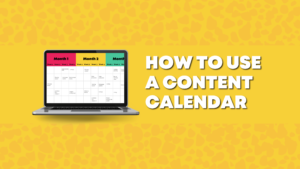
If you’re looking for a simple, pretty, and smart content calendar that accounts for how content marketing actually works in 2026, it’s right here.
I want to take a moment to touch on what makes this content calendar so good, in my humble opinion.
Spreadsheet content calendars are still the most popular
There are so many great tools that you can use to create a content calendar. Personally, I use a combination of Trello and Notion.io, but guess what? I still use my trusty Google sheets version of my content calendar, and I’m not alone in that.
In fact, many people in the comments went on to say that they are like me—they use tools like Asana, Trello, Clickup, etc., and they STILL use a spreadsheet somewhere in there.
The truth is, it’s hard to improve on a spreadsheet. It’s completely customizable, and thanks to Google Drive and other shared drive options, it’s supremely easy to share and keep as a “live” document.
This content calendar template is designed for transparency
Content creation is rarely a job done by a single person. Typically, as freelance writers, we require feedback and input from our clients, and they want to know how we’re progressing.
Even when we’re working on our own content, putting it all together is rarely a solo activity. As I finish this draft, I’ll be handing it over to my editor (hi, Mike!) and my content designer (hey, Tiffany!) so they can help me finish this up.
Using a spreadsheet that anyone can access, view, and update, as needed, saves a LOT of time and prevents things from getting lost as you update static documents.
You can customize this content calendar as much as you like
I’m fighting the urge to compare us to snowflakes, but it’s true that every freelancer is unique. The way you manage your clients and the tasks on your to-do list will look quite different from my own.
The lovely thing about this content calendar template is that once you create your own copy, you can change any element you like, from the color scheme and font to the columns, timeline, and overall structure.
It’s a simple content calendar template (for busy people)
However, there comes a point where being overly organized can actually make things more complicated than necessary. So when it comes to a tool like this content calendar template, which is so central to my freelance writing career, my goal is to keep it simple.
Once you download the template, you’ll see that it’s quite intuitive to use. That being said, if you have any feedback on it at all, please let me know in the comments below. I’m always happy to improve it!
This content calendar template is updated for AI search
The biggest update to this template in 2026 is how it helps you plan for AI-powered search results.
I’ve added dedicated columns to track AI prompt examples and identify which topics you’re targeting for Google’s AI Overviews. This matters because AI search is fundamentally changing how people discover content – and if you’re not planning for it, you’re leaving traffic on the table.
When you download the 2026 Content Calendar template, you’ll see a cover sheet first, and then multiple tabs to use for planning your content.
Here’s a breakdown of what’s in the sheet:
Quarterly Content Planner
This tab is your space for “big picture” planning. You may choose to keep it quarterly, or you can cut & paste columns C:N three times and make it a yearly planner.
This area allows you to see all of the campaigns you have going on, with the big tasks to complete each week of each month. It’s also a great place to set reminders for seasonal things—holiday sales, new product releases, or important dates for your unique audience.
Topic
On the monthly tabs, the first column is dedicated to the Topic. You’ll note I didn’t call this section “Headline,” because this content calendar isn’t just for blog articles. Some content pieces you create may not have headlines per se, or you may do what I do and always write the headline last.
In any event, this column is for the “big idea” behind the content piece you’re creating.
Category
This section is intentionally vague—Category can mean the different categories you have on a blog, or the different categories/segments of your audience, or different parts of the customer journey—you can edit them based on your unique content strategy.
To change what appears in the dropdown:
1. Highlight the column you want to edit
2. Right click and select “Data Validation”
3. Edit the list, using commas to separate each item
Notes
This section is perhaps the most important—it’s where you can provide a few more sentences to explain exactly what the specific content topic you’re working on is all about.
As a freelance writer, this section is incredibly important for making sure your clients understand exactly what you’re doing. You can keep all of your content topics in one place, for swift client approvals.
Relevant Links
When you’re creating in-depth, SEO-valuable content, you’re going to have other links that relate to what you’re writing. I find that I usually come across links to resources, other Google drive documents, websites, etc. when I’m in the research phase.
So I keep a space for these links in my content plan, so that when I start writing or brief another writer, they already have all of the links they need to get started. Saves me a lot of time hunting these things down later!
Keywords
As you know, I’m super passionate about the true meaning of SEO. So a lot of the client work I do is focused on SEO—but even when I’m not writing for SEO purposes, I still like to do a little keyword research. To me, it’s a method of supercharging my writing so it can perform as well as possible, even if my main goal isn’t bringing in organic traffic.
I always include primary and secondary keywords in my content calendar, so I can easily integrate them into my copy. (Stay tuned—my next article is going to be all about my super-sneaky tactics for keyword research.)
AI Prompt Example
As AI-powered search tools like ChatGPT, Perplexity, and Google’s AI Overviews become more prominent, it’s important to understand what kinds of prompts might surface your content. This column is where you track example prompts or questions that users might ask AI tools related to your topic.
For example, if you’re writing about “email marketing automation,” you might note prompts like “What’s the best way to automate welcome emails?” or “How do I set up drip campaigns for e-commerce?”
Heads up — I have some very fancy (and expensive) tools that allow me to find exact prompts for my clients, and analyze the top sources
You can also use this space to track sources that are frequently cited in AI search results for your topic. This helps you understand the competitive landscape and identify opportunities to become a cited source yourself.
AI Prompt Example
As AI-powered search tools like ChatGPT, Perplexity, and Google’s AI Overviews become more prominent, it’s important to understand what kinds of prompts might surface your content. This column is where you track example prompts or questions that users might ask AI tools related to your topic.
For example, if you’re writing about “email marketing automation,” you might note prompts like “What’s the best way to automate welcome emails?” or “How do I set up drip campaigns for e-commerce?”
You can also use this space to track sources that are frequently cited in AI search results for your topic. This helps you understand the competitive landscape and identify opportunities to become a cited source yourself.
AI Overview Target
Google’s AI Overviews appear at the top of search results for many queries, synthesizing information from multiple sources. This column lets you track whether you’re specifically targeting an AI Overview for this piece of content.
A simple “Yes” or “No” here helps you prioritize which pieces need extra attention for AI visibility. If you mark something as “Yes,” you’ll want to make sure your content is structured to be easily referenced – clear answers to specific questions, authoritative sourcing, and the kind of depth that makes AI tools want to cite you. (Not all that different form traditional SEO content, but I’ve got plenty of takes on that.)
Not every piece of content needs to target AI Overviews, but for high-value topics where you want maximum visibility, this column helps you stay strategic about where you’re investing your effort.
Additional Assets
It’s 2022, y’all. A single blog article with nothing else going on just isn’t going to cut it. These days, a single topic often has multiple assets off the back of it—for example, the article you’re reading right now isn’t just an article. I’ve included the downloadable template too, and there’s this shiny landing page as well in my resources section.
Not to mention, I’ll need to write a few long-form LinkedIn posts about this, and some Twitter threads as well. That’s a lot of content pieces to keep track of, which is why I have a section dedicated to the spin-off assets that come out of a single topic.
Status
As freelancers, we have to keep a lot of plates in the air. The “Status” column allows you to track a piece of content through the creation, publication, and promotion process.
You’ll notice this column is automatically color-coordinated. That’s because I use this to remind clients that they need to review, approve, or publish content. It’s very simple to send an email with a link to the calendar and a note that says, “Can you please review everything that’s pink in column G”?
To change what appears in the dropdown:
1. Highlight the column you want to edit
2. Right click and select “Data Validation”
3. Edit the list, using commas to separate each item
To change the auto color-coordination:
1. Highlight the column you want to edit
2. Right click and select “Conditional formatting”
3. A sidebar will appear on the right, which you can use to delete, edit, or create new rules
Deadline
Deadline is pretty straightforward—it’s a lot easier to plan your freelance writing when you have some dates to work with.
That being said, for many of my clients, I don’t include this column at all. That’s because my clients are often a lot less fussed about specific dates than I am.
You’ll also see that in my examples, I’ve written more general deadlines, like “next week” rather than a specific date. As a freelancer, I always build in a little wiggle room with my deadlines, so that I don’t disappoint clients by promising an exact date that may or may not work out.
Client Feedback
Getting feedback from your clients can be a big challenge (though sometimes, you have the opposite problem and get too much feedback!)
In either scenario, I find it’s valuable to have a space for clients to provide their feedback when you’re still at the idea level. This allows them to ask questions, voice their concerns, and most importantly, add in any additional value they have before you start writing and creating.
Promotion Plan
Last but definitely not least, I’ve included a section for you to track the promotion strategy you will use with each piece of content. And if you’re not planning your content promotion, well, I have some bad news—you’re losing out on a A LOT of the SEO power you want.
You may want to update the channels I’ve put at teh top, but no matter what, it’s important to be thinking about where exactly you’ll be sharing the content once it’s live.
This will save you time in the long run—if you know an article is going to end up on Instagram, for example, you can make sure you create some graphic or video content to put in both the article and showcase on social media. (Also, if you’re working with a social media pro, they will love this section of the calendar!)
Remember, once you download your own version of the calendar, it’s yours to use how you like. If you have any feedback, or anything you’d like to see added to the calendar, you can put it in the comments below!
Liam is the guy behind this website, Inkwell Content. He offers training and guidance for freelance writers. For businesses, he builds unique content strategies and manages their execution end to end. He hates writing in third person.